Split a bill
What it's for
Splitting lets one bill be paid in several parts — useful when guests share the cost or pay by different methods (one card, two UPI). DashDinner keeps the total honest: the parts must add up to the full bill before you can close it.
Where to find it
Splitting is part of the settle flow in the POS. Start settling the bill as usual, then choose the split option instead of a single payment method.
Walkthrough
- Web
- iOS
- Android
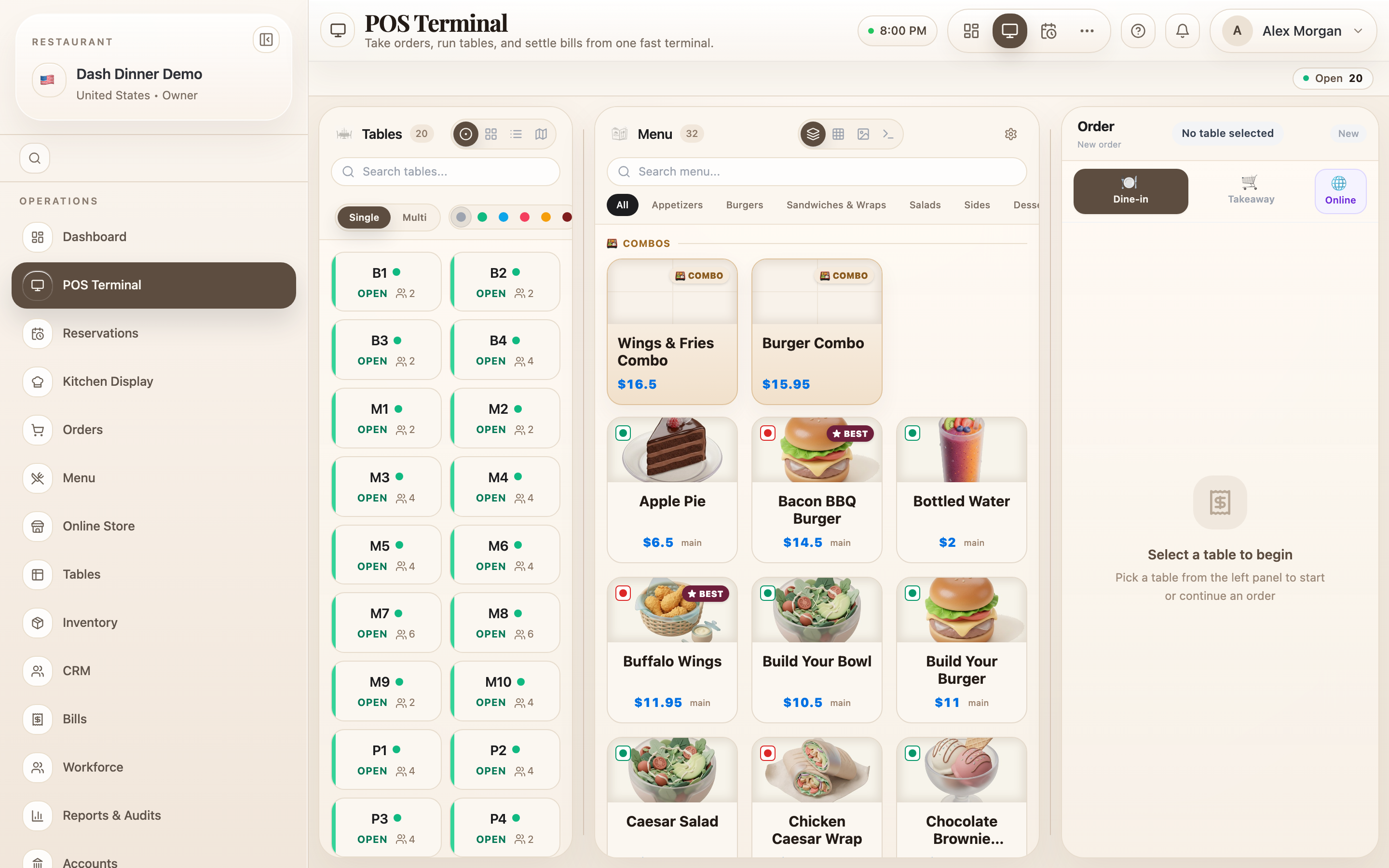
- Choose Bill & Settle, then finalise and lock the bill.
- In the payment step, choose Split (alongside Cash, Card, and UPI).
- Add a row for each payment: pick its method and type its amount.
- Keep adding rows until the parts equal the bill total — DashDinner won't let you close a split that doesn't add up.
- Confirm to settle. The table is freed once every part is recorded.
- Choose Bill & Settle, then finalise and lock the bill.
- Choose Split in the payment step.
- Add a row per payment — method and amount — until they total the bill.
- Confirm to settle.

- Choose Bill & Settle, then finalise and lock the bill.
- Choose Split in the payment step.
- Add a row per payment — method and amount — until they total the bill.
- Confirm to settle.

Splitting a single item
If two guests share one dish billed as a quantity of two, use the Split control on that line in the order panel to divide the quantity before you settle.
Worked example
A ₹2,400 table splits three ways: one card, two UPI. Finalise and lock the bill, choose Split, and add three rows — Card ₹800, UPI ₹800, UPI ₹800. The rows total ₹2,400, so DashDinner lets you settle, recording each payment separately.
Tips & things to watch
- ✅ The parts must equal the total. DashDinner blocks a split that's short or over, so your takings always reconcile.
- ✅ Mix methods freely — cash, card, and UPI can all appear in one split.
- ⚠️ Splitting an item vs. splitting the bill are different: the line-level Split divides one dish; the payment-step Split divides the whole bill.