Loyalty & email campaigns
What it's for
Two ways to keep guests coming back: a loyalty program that earns and redeems points automatically, and an Email Studio to reach guests — the right guests — with a message.
Loyalty program
Open the Loyalty Settings tab. This configures the rules; points then earn and redeem on their own during ordering.
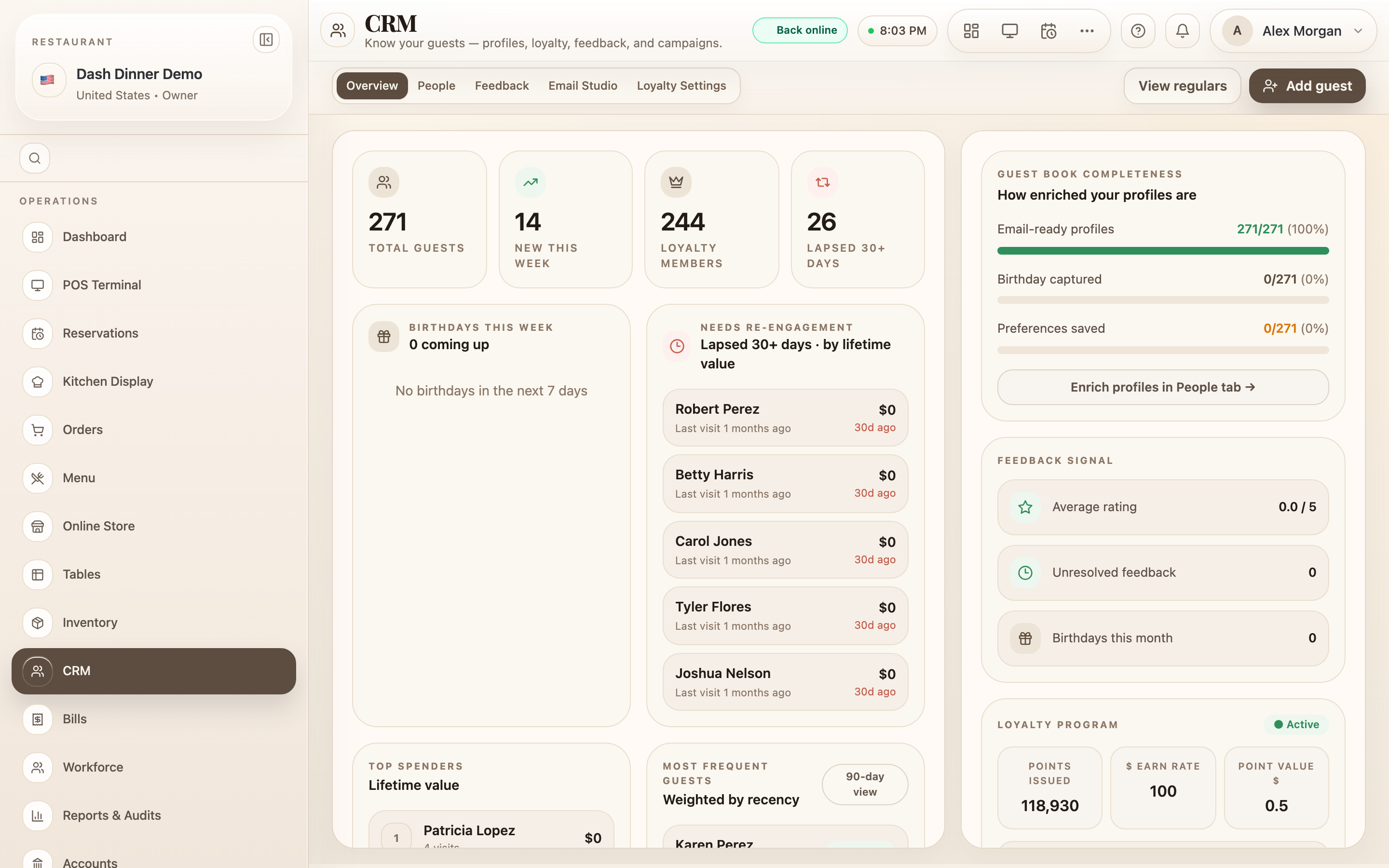
- Turn it on — the enable toggle: when on, "Guests earn points on every order and can redeem them for discounts."
- Earning & redemption rules — Spend per 1 point earned (e.g. ₹100 spent → 1 point) and Point value when redeemed (e.g. 1 point → ₹0.50 off).
- Bonus awards — a Welcome bonus when a profile is created and a Birthday bonus awarded automatically.
- Tier thresholds — the point levels for each tier (read-only here).
- Regulars & VIP thresholds — set the spend/orders that make a guest a "regular" or "VIP" (this also decides who a VIP campaign reaches). Save with Save thresholds.
Choose Save changes — rules take effect immediately. Points accrue and redeem as discounts during billing; there's no manual enrol or redeem step, and a guest's balance shows on their profile.
Email campaigns
Open the Email Studio tab to write and send an email — with the guest directory right beside the composer.
- Under Compose email, add recipients to the To field, or pick them from the directory on the right.
- In the Guests directory, filter by segment chips — All, VIP, Lapsed 30d+, Birthday, New — plus a birthday-month filter. Use Select all filtered and Add to drop them into the recipients.
- Write a Subject and your Message (a formatting toolbar gives you bold, lists, links, and more). Optionally Save as template for reuse.
- Choose Send.
To reach a whole segment beyond the visible list, use the Email entire audience button — it resolves the full segment on the server, warns you first, and always honours guests who've opted out of email.
Past sends appear under Recent campaigns with a live delivery status (queued / sending / sent / partial / failed) and recipient counts.
Email respects each guest's email permission — guests who haven't allowed email updates are skipped, even in a whole-segment send.
Worked example
Win back lapsed guests. On Email Studio, filter the directory to Lapsed 30d+, write a subject ("We miss you — 15% off this week") and a short message, then use Email entire audience to reach everyone in that segment. Watch delivery under Recent campaigns.
Tips & things to watch
- ✅ Set a welcome and birthday bonus — easy, automatic reasons for guests to return.
- ✅ Segment before you send — a targeted email to Lapsed or VIP beats emailing everyone.
- ⚠️ Opt-outs are always honoured — email only reaches guests who allowed updates.
- ⚠️ Whole-audience sends can reach more guests than the list shows — the confirm prompt warns you.