The Dashboard
What it's for
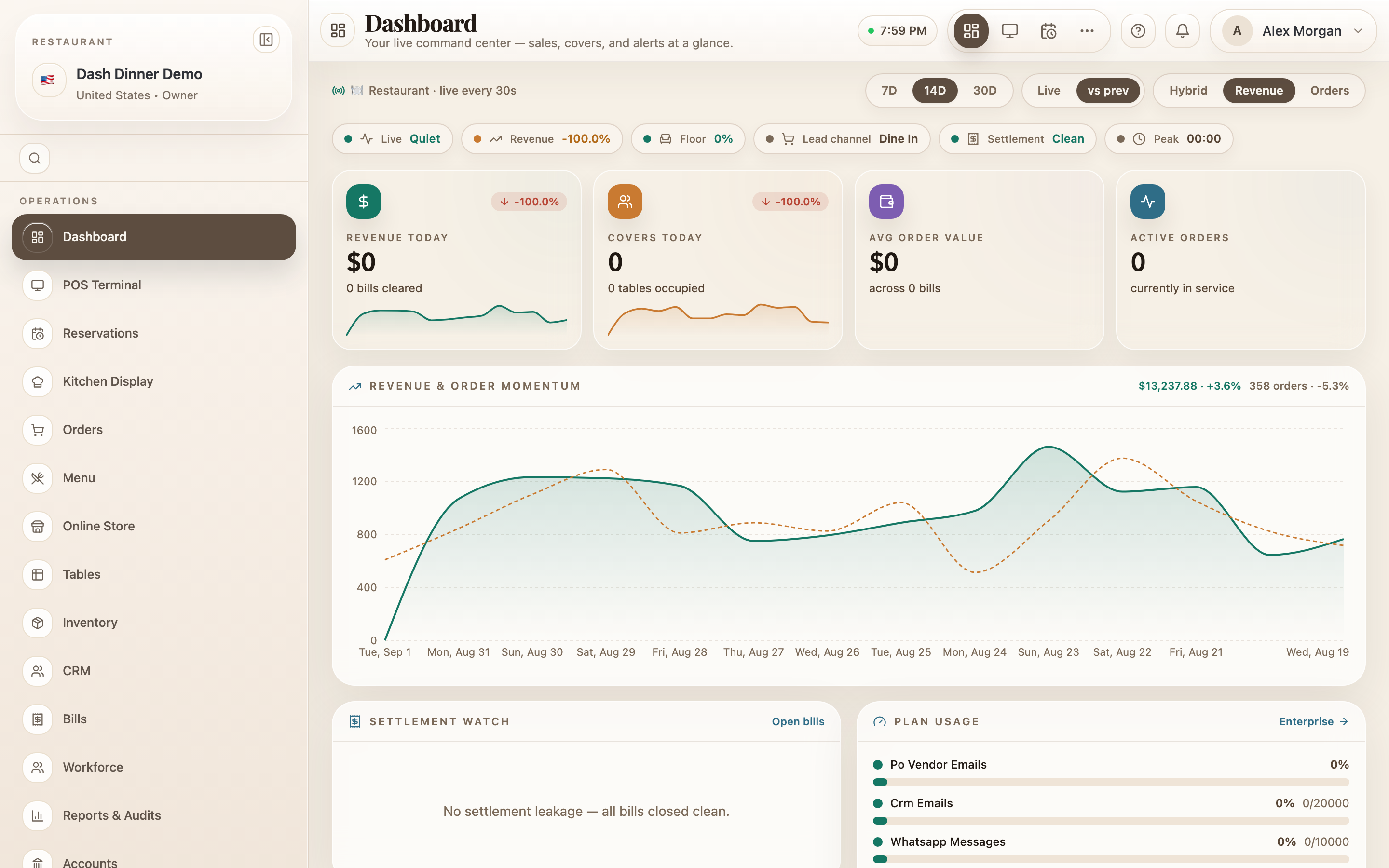
The Dashboard is your restaurant's home screen — a live snapshot of how today is going and what needs attention. It refreshes on its own every 30 seconds, so it's always current without you doing anything.
Where to find it
- Web
- iOS
- Android
Choose Dashboard at the top of the left sidebar (route
/dashboard). Many owners and managers land here after signing in.
Open Dashboard from the app.
Open Dashboard from the app.
What it shows
Key numbers
At the top is a row of KPI cards for today — for a restaurant that's typically Revenue today, Covers today, Avg order value, and Active orders. The cards adapt to your kind of business: a café leads with Cups today, a bar with Open tabs, a QSR with Tokens served, and a cloud kitchen with Deliveries today.
Just below, a signal bar gives you scannable status chips — Live (how many orders in service), Revenue vs yesterday, Floor occupancy, the Lead channel, and any Unsettled bills.
Trends
Charts show where the day is heading: Revenue & order momentum over time, Service cadence by hour (with your peak highlighted), Demand leaders (top items), Category performance, Payment mix, and Floor & crew readiness.
What needs attention
Panels surface things to act on, each with a shortcut to the full screen: Recent order movement (→ Orders), Settlement watch for unsettled bills (→ Bills), Kitchen line pressure (→ Kitchen), Reservations today (→ Reservations), and Inventory readiness (→ Inventory).
It's personalised to you
- By role. The Dashboard shows what your job needs — an owner sees the whole picture, a floor server sees service and tables, the kitchen sees line pressure. Money figures are hidden from roles without finance access.
- By business type. The lead numbers match how your venue works (covers, cups, tabs, tokens, deliveries…).
New here? Owners see a Finish setup strip with your progress and a Continue button through six steps (business profile, menu, tables, staff, hardware, go live). It disappears once you're set up.
Reading it
- Period controls at the top: a range of 7D / 14D / 30D, a Live vs vs prev comparison, and (for finance roles) a Revenue / Orders view. Your selection is saved in the page address, so you can bookmark or share a particular view.
- No refresh button needed — it updates live every 30 seconds and shows refreshing while it fetches.
Tips & things to watch
- ✅ Start your day here. The signal bar and attention panels tell you what to deal with first.
- ✅ Use the shortcuts — each panel links straight to the screen where you act on it.
- ⚠️ Numbers are live, not final. Today's figures move as service continues; use the Reports & Audits screen for settled, end-of-day totals.