Ingredient detail & adding stock
What it's for
An ingredient's own page is where the real work happens: adding stock, correcting the count, setting reorder levels, and reviewing its history, batches, and which dishes use it.
Where to find it
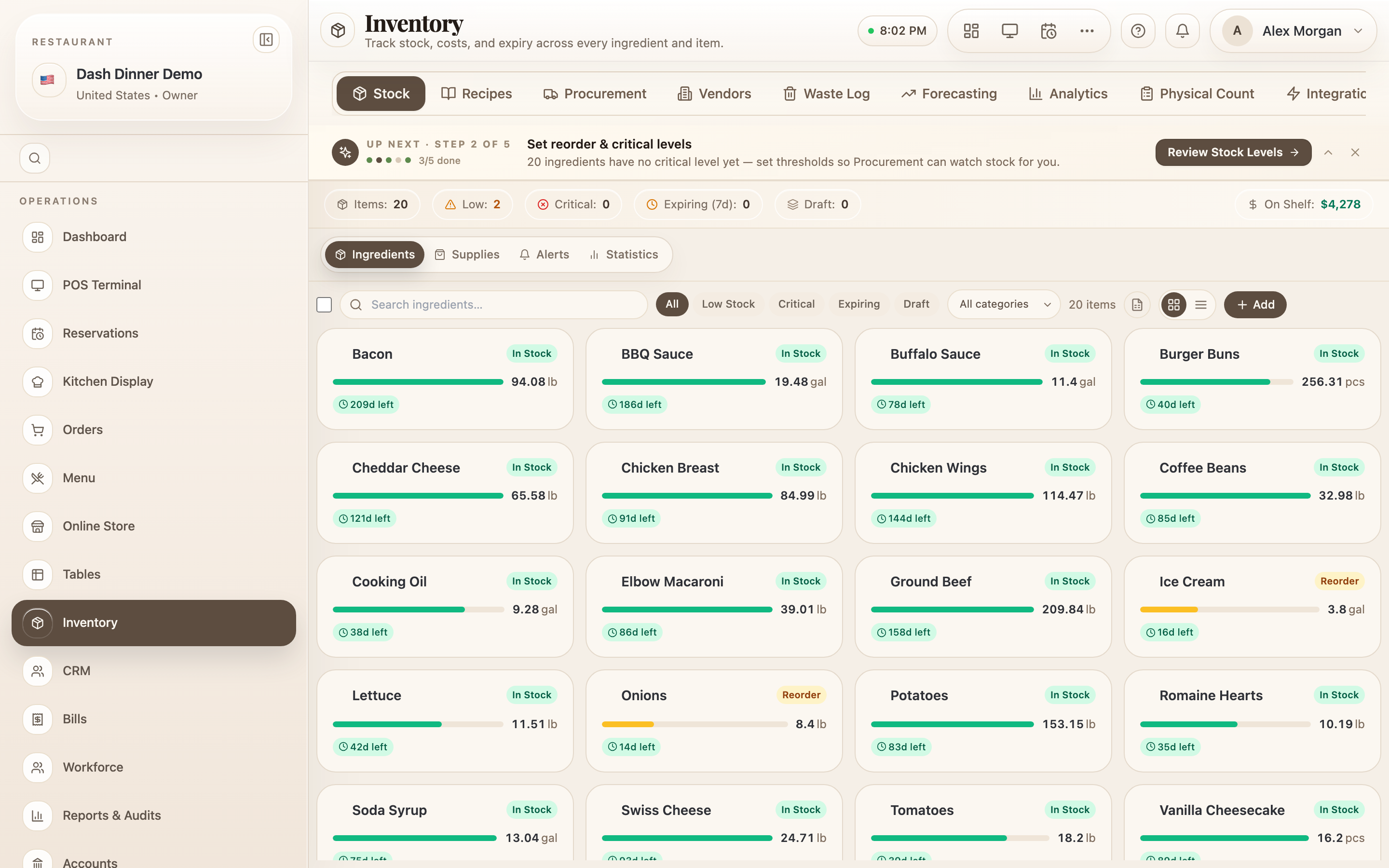
From the Stock list, choose any ingredient to open its detail
page (route /inventory/stock/:id).
The summary
Stat cards show On Hand, Reorder At, Cost / Unit, and Expiry. When an ingredient is tracked in batches you'll also see Nearest Expiry and Avg Cost/Unit.
Add stock
Choose Add Stock. You'll be offered three ways to bring stock in — "Raise a PO, record a cash purchase, or enter stock manually":
- Vendor PO — order from a supplier; stock lands when the order is received.
- Cash purchase — record a quick over-the-counter buy.
- Manual stock — enter a quantity directly (e.g. an opening balance).
Each records the quantity, unit, and cost, and updates On Hand and the ingredient's value.
Correct the count
If the shelf doesn't match the system, choose Adjust Count. Enter the Actual count — DashDinner shows the current system figure and the resulting variance live — add a note for why, and choose Save Count.
Adjusting one ingredient is for a quick fix. To reconcile the whole store, run a Physical count instead.
Set reorder levels and details
Choose Edit to open the details drawer: name, category, preferred supplier, unit, Reorder level, Critical level, max stock, and storage location. The reorder and critical levels are what drive the Reorder and Critical badges on the stock list.
History, batches, and linked dishes
The bottom panel has three tabs:
- Stock History — every movement, labelled by type: Purchase, Sale, Waste, Adjustment, Opening, and so on.
- Batches — individual lots with their own quantities and expiry dates.
- Linked Dishes — the menu items that consume this ingredient.
Worked example
Received 25 kg of basmati rice. Open the rice ingredient, choose Add Stock, pick the way it came in (say a cash purchase), enter 25 kg at its cost, and save. On Hand jumps by 25 kg, its value updates, and the purchase appears in Stock History.
Tips & things to watch
- ✅ Set a reorder level on every ingredient so the low/critical badges actually warn you.
- ✅ Add stock the way it really arrived (PO vs cash vs manual) — it keeps costs and supplier records honest.
- ⚠️ Adjust Count changes stock immediately. Always add a note, so the movement is explainable later.