The stock list
What it's for
Inventory tracks what you have in the store: every ingredient, how much is on hand, what it's worth, and what's running low. It's the foundation for reordering, recipe costing, and keeping waste under control.
Where to find it
- Web
- iOS
- Android
Choose Inventory in the left sidebar. It opens the Inventory
hub on the Stock tab (route /inventory/stock).
Open Inventory from the app.
Open Inventory from the app.
The Inventory hub is organised into tabs — Stock, Recipes, Waste Log, Physical Count, and more. This guide covers Stock; the others have their own guides. Within Stock, sub-tabs split Ingredients, Supplies, Alerts, and Statistics.
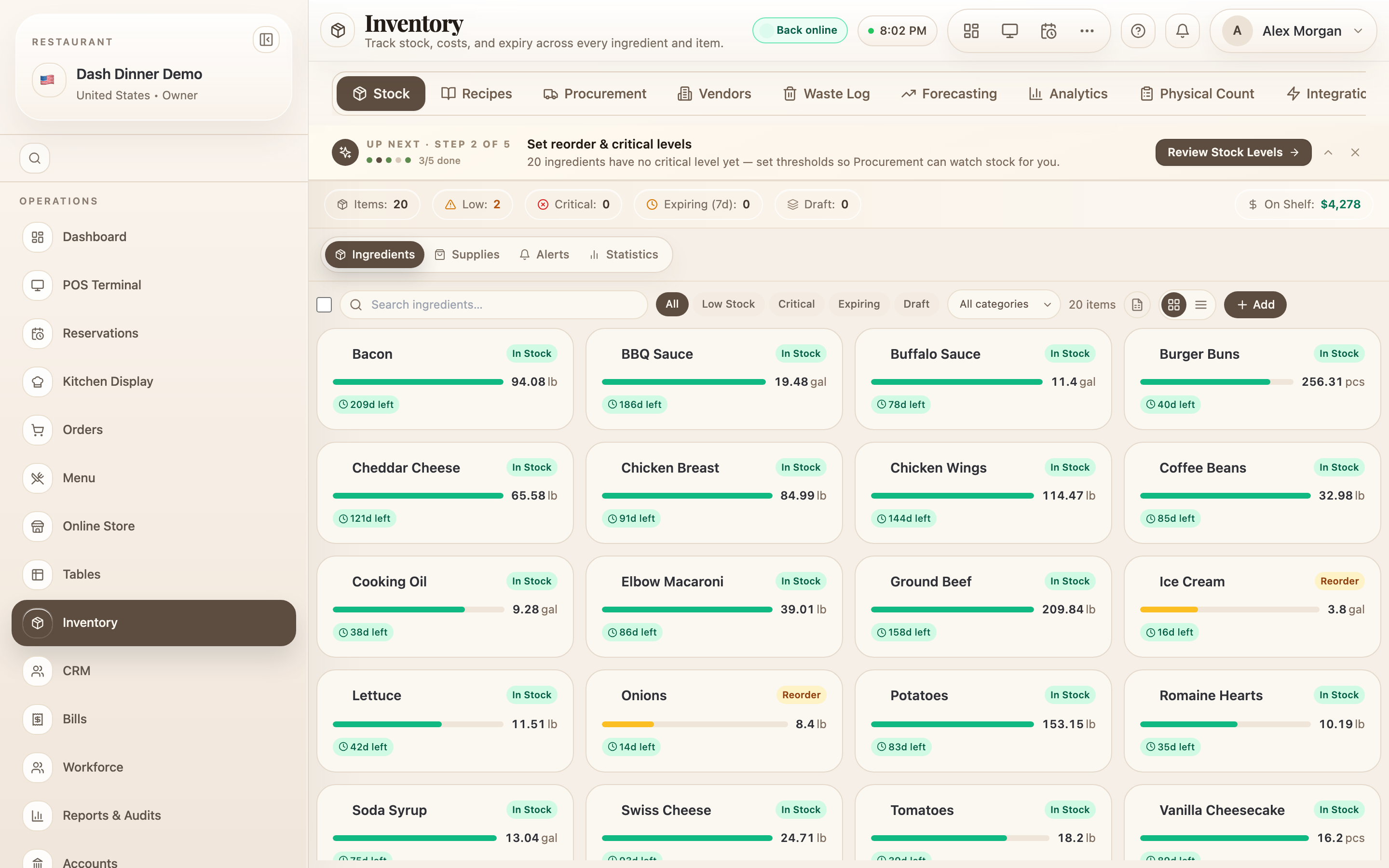
Reading the list
Switch between Card view and Table view. The table shows each ingredient's Stock on hand, Level, Reorder point, Days Left, Cost/Unit, Value, Expiry, and Location.
Status at a glance
| Badge | Meaning |
|---|---|
| In Stock | Healthy — above the reorder point |
| Reorder | At or below the reorder level — time to buy more |
| Critical | At or below the critical level — nearly out |
| Expiring | Has stock expiring within 7 days |
| Draft | Registered but not yet stocked |
The critical level defaults to half the reorder level when you haven't set one.
The summary chips
Along the top, chips give you the whole picture — and each one filters the list when tapped: Items, Low, Critical, Expiring (7d), Draft, and On Shelf (your total stock value in ₹).
Finding an ingredient
Use the Search ingredients… box, the status pills (Low Stock, Critical, Expiring, Draft), or the category dropdown (All categories).
Register a new ingredient
Choose Add to register an ingredient. Enter its Name and, optionally, Category, Brand, and Notes, then Save to Stock.
Adding an ingredient here just registers it as a Draft with zero stock — there's no quantity or price to enter yet. You add actual stock and cost from the ingredient's own page, via a purchase order, cash purchase, or manual entry. See Ingredient detail & adding stock.