The Kitchen Display
What it's for
The Kitchen Display (KDS) is the live screen the kitchen works from. Every order fired from the POS lands here as a ticket, so cooks can see what to make, in what order, and how long it's been waiting — no paper chits required.
The Kitchen Display is built to run full-screen on a dedicated kitchen monitor or a tablet propped at the pass. Depending on your business type it may be labelled Kitchen Display, Bar Display, or Production Display — the screen works the same either way.
Where to find it
- Web
- iOS
- Android
Choose Kitchen in the left sidebar (route /kitchen). Staff
who log in with a kitchen role land here automatically.
Open Kitchen from the app. It opens the Kitchen Display full-screen.
Open Kitchen from the app. It opens the Kitchen Display full-screen.
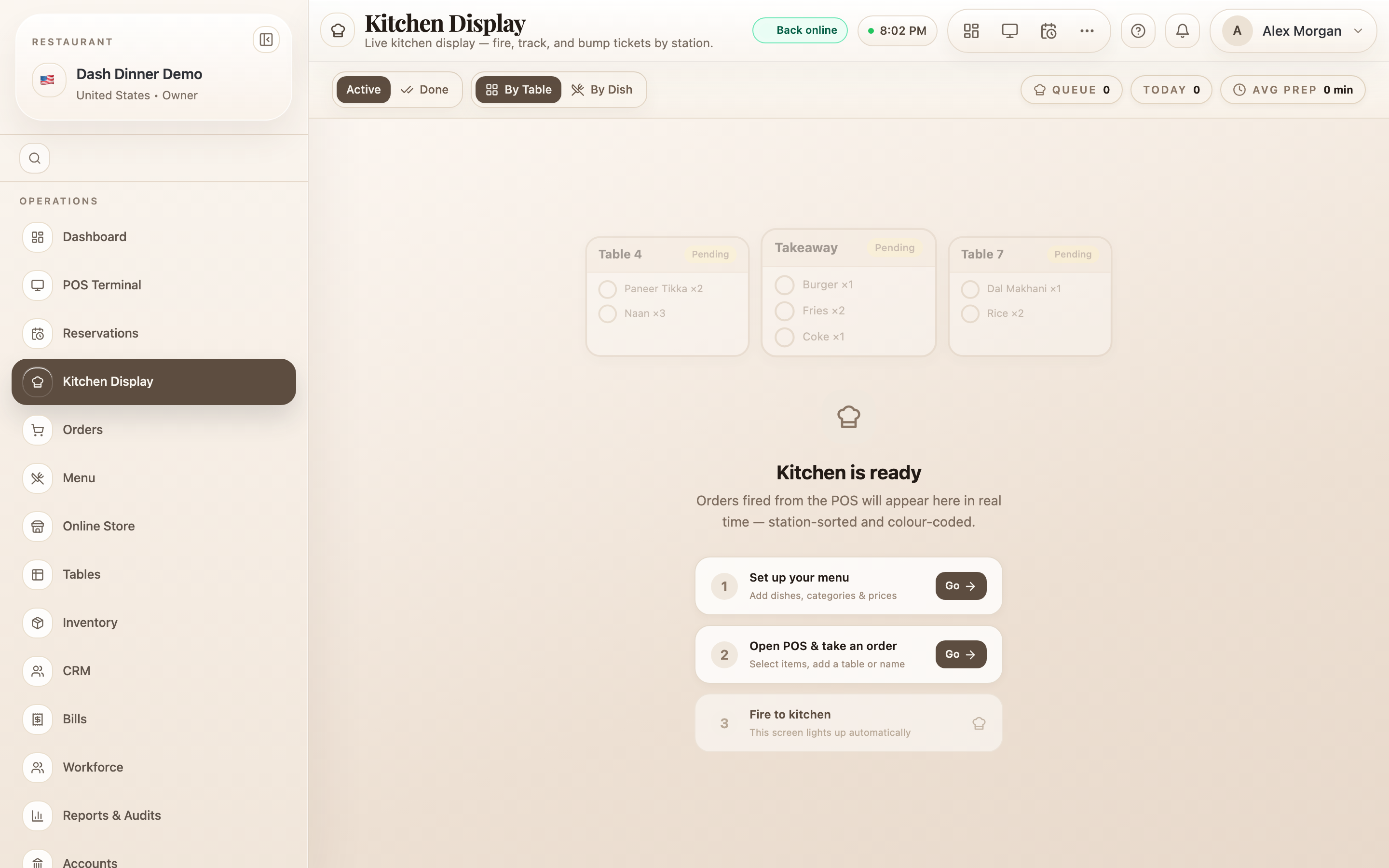
The controls at the top
A slim control strip runs across the top (it tucks away as you scroll a busy screen):
- Active / Done — switch between orders still cooking and orders just completed. The Done tab keeps finished orders visible for 45 minutes in case you need to check or reprint.
- By Table / By Dish — view one card per order (best for plating a table together) or group the same dish across every order (best for batch cooking — see Working tickets).
- Station filter — All plus a button per
station, each showing how many items it has waiting, e.g.
Grill (3). Filter to your station to see only your items. - Live stats — at a glance: items In queue, the day's count, and Avg prep time.
Reading a ticket
Each ticket header tells the cook what they need to know:
- Order number — e.g.
#42, with the guest's name beneath it when there is one. - Order type — Table 12 for dine-in, otherwise Takeaway or Delivery. Third-party delivery orders show an aggregator badge (Swiggy, Zomato, and so on).
- Time waiting — a clock counts up from when the order was fired.
- Item notes appear as ⚠ no onions; an item changed after firing shows a ⚡ Modified badge; a cancelled item shows Void and is struck through.
What the colours mean
The ticket border tells you its state and whether it's running late:
| Border | Meaning |
|---|---|
| Yellow | New — items still to be started |
| Amber | In progress, or past the target prep time (running late) |
| Green | Every item is ready |
| Red | Well over the target time — needs attention now |
The "late" threshold is set for your kind of restaurant; a ticket turns amber past it and red once it's past twice that time.