Reports & exports
What it's for
Reports & Audits is where the numbers live — sales, tax, top items, staff and table performance, payments, and more — for any period you choose. You can read them on screen, compare periods, and export the data.
Where to find it
- Web
- iOS
- Android
Choose Reports & Audits in the left sidebar (route /reports).
Open Reports from the app.
Open Reports from the app.
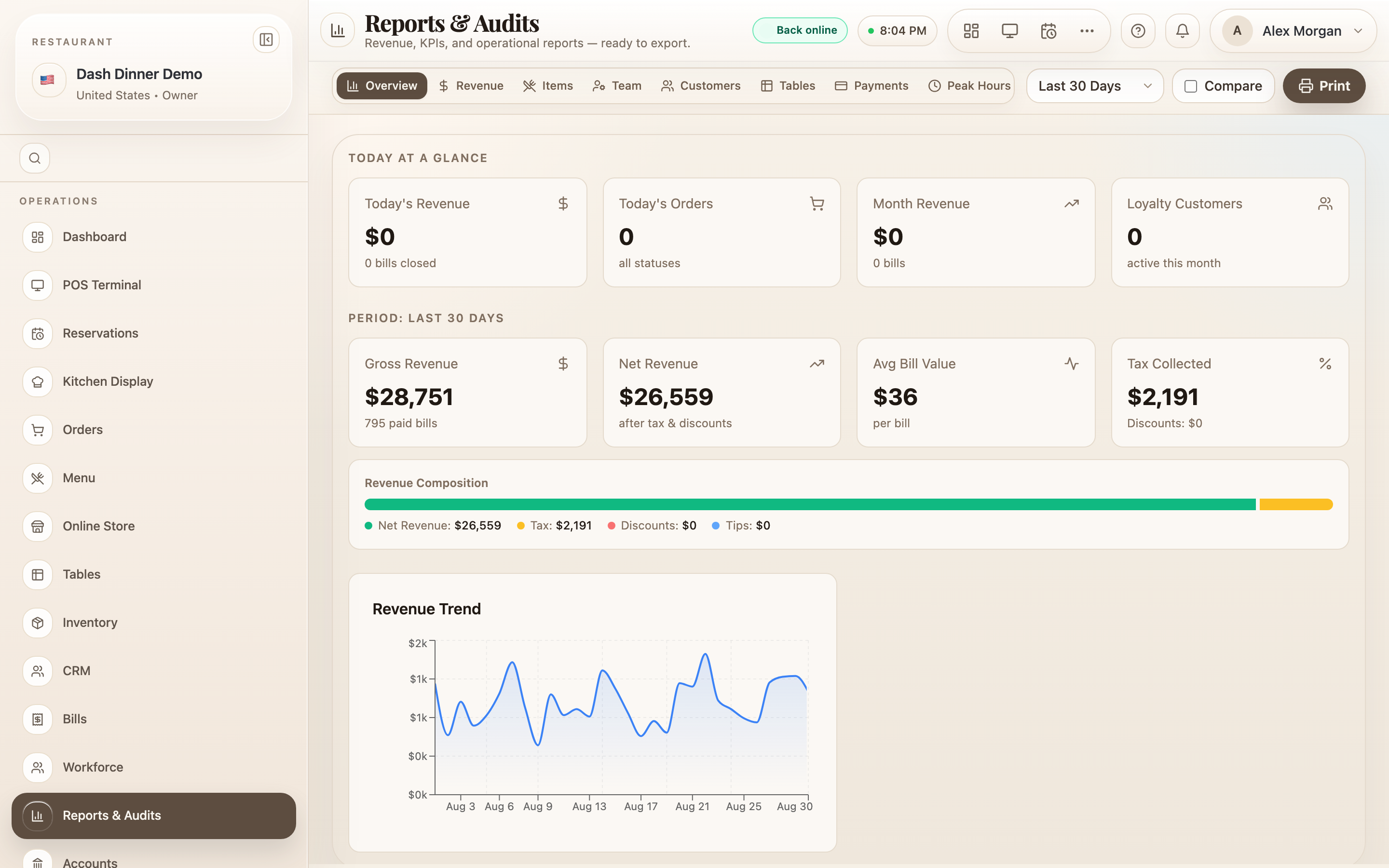
The report tabs
It's a single hub with a tab per report:
- Overview — today at a glance plus the period's gross/net revenue and tax.
- Revenue — gross, net, tips, service and delivery charges, discounts.
- Items — item sales by revenue, quantity, or margin.
- Team — per-staff orders, revenue, service time, tips.
- Customers, Tables, Payments, Peak Hours.
- Tax (shown as Tax & GST in India) — tax collected, taxable amount, effective rate.
- Outstanding — unsettled bills you can still Collect on.
- Void Audit — voided bills with a risk rating (managers/owners).
- Combos, Menu Matrix, Audits, and Export.
Some tabs appear only when relevant: Tables/Combos need those features on, Menu Matrix is a Pro/Enterprise feature, and Audits/Export need the right permission. The Audits tab has its own guide.
Choose a period
A preset dropdown sets the reporting window: Today, Yesterday, This Week, This Month, Last 30 Days, Last 90 Days, and more — or Custom Range for exact dates. Tick Compare to measure against the Previous period or Previous year. A Print button prints the current report (the way to get a PDF).
Export the data
You've got two ways to get data out:
- Per report: most tabs have an Export CSV button that downloads that report for the chosen period.
- The Export tab (Export Hub): a guided export of Bills, Orders, Attendance, or Customers. Choose what to export, set filters and a date preset, pick a format — .xls Spreadsheet, .csv Plain CSV, or .txt Text file — and choose Download.
Exports are capped at 3 months and 10,000 rows per file. There's no PDF export or scheduled report — use Print for a printable copy.
Worked example
Month-end sales and tax. Set the period to Last Month, read the Revenue and Tax tabs, tick Compare → Previous period to see the change, and use Export CSV on each to hand figures to your accountant.
Tips & things to watch
- ✅ Set the period first — every tab reports for the window you choose.
- ✅ Use Compare to see whether you're up or down on the last period or year.
- ⚠️ No PDF/scheduling —
Printis the printable route, and exports are CSV/XLS/TXT within the 3-month, 10k-row limit.