Take a new reservation
What it's for
Creating a reservation books a guest in for a date, time, and table, and captures their details so service runs smoothly when they arrive. You can also take a deposit at the same time.
Start
Choose New Reservation. (You can also click an empty slot in a calendar view to start one pre-filled to that time, or use Add to Waitlist when you can't offer a firm time yet.)
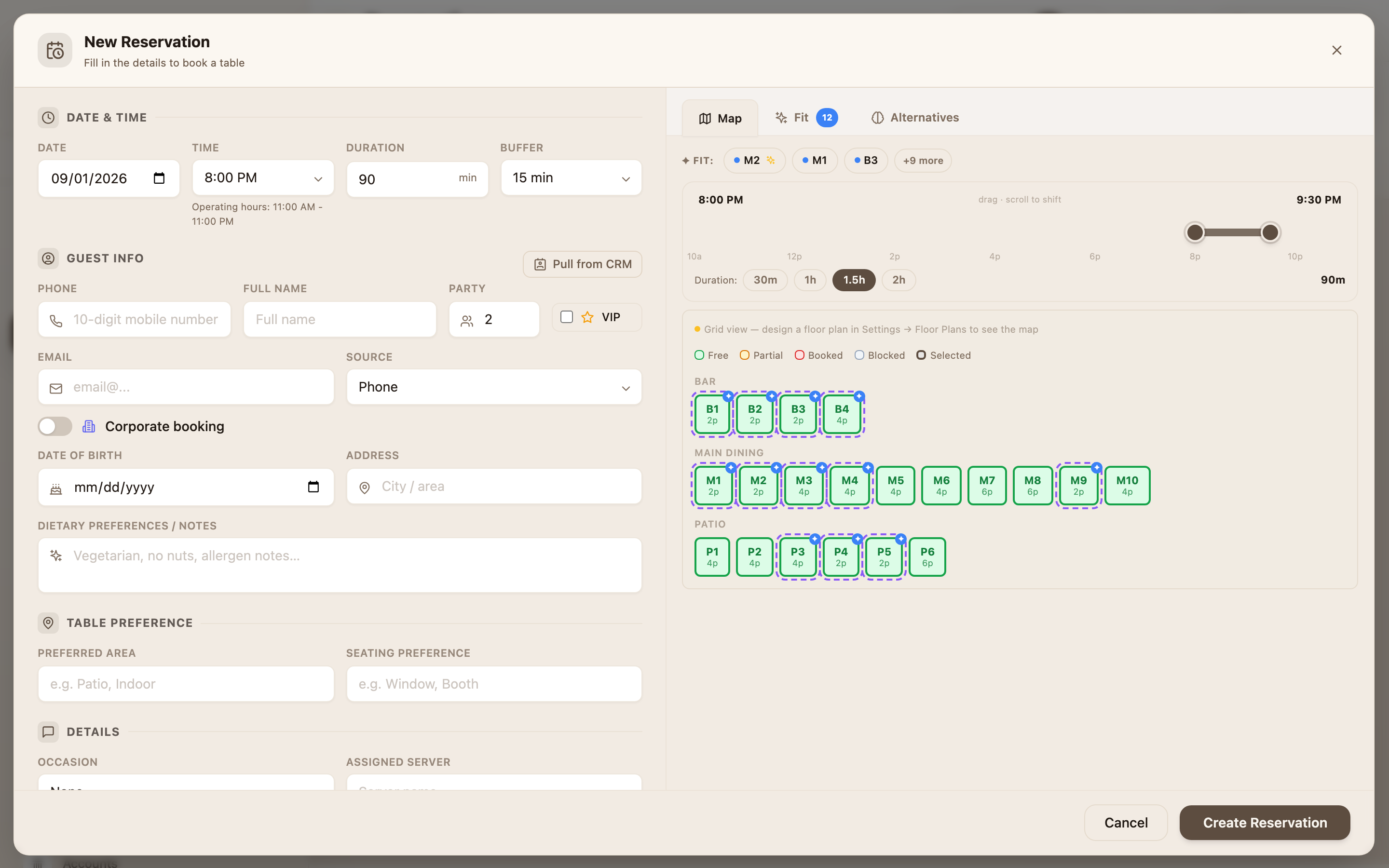
Fill in the booking
The window has the booking details on the left and a table picker on the right.
When and how long
- Date and Time (drag the time bar to set the slot), plus Duration and an optional Buffer.
The guest
- Phone (required) — as you type, matching regulars are suggested so you can reuse their details.
- Full Name, Party (number of covers), and optionally Email and Source.
- Optional extras: company, date of birth, address, and dietary notes.
Seating & requests
- Preferred Area, Seating Preference (e.g. window, booth), Occasion, Assigned Server, Special Requests, and Internal Notes. There's a VIP toggle for regulars worth flagging.
Assign a table
On the right, pick the table using the three tabs:
- Map — tap tables on the floor plan.
- Fit — suggested table combinations for the party size.
- Alternatives — smart alternative times or tables if your first choice is taken.
Take a deposit (optional)
Under Deposit, turn on Require deposit to reveal an Amount, a Method, and a Txn Ref.
Save
Choose Create Reservation. It appears on the calendar right away.
Worked example
Book a table for six on Friday, 8 pm. Choose New Reservation, set the Date to Friday and drag the Time to 20:00, enter the guest's Phone and Full Name, set Party to 6, use the Fit tab to pick a six-top, and choose Create Reservation.
Tips & things to watch
- ✅ Start with the phone number — it pulls up returning guests so you don't retype their details.
- ✅ Use the Fit tab to seat larger parties across the right combination of tables.
- ⚠️ Take a deposit for big or peak bookings — it's the simplest way to cut no-shows.