The Tables floor
What it's for
Tables is your live picture of the floor — every table, which area it's in, whether it's free or occupied, and what to do with it next. It's where you manage tables as a whole, distinct from seating one during service in the POS.
Tables is part of the floor-plan feature. If you don't see it in the sidebar, your plan doesn't have that module enabled.
Where to find it
- Web
- iOS
- Android
Choose Tables in the left sidebar (route /tables).
Open Tables from the app.
Open Tables from the app.
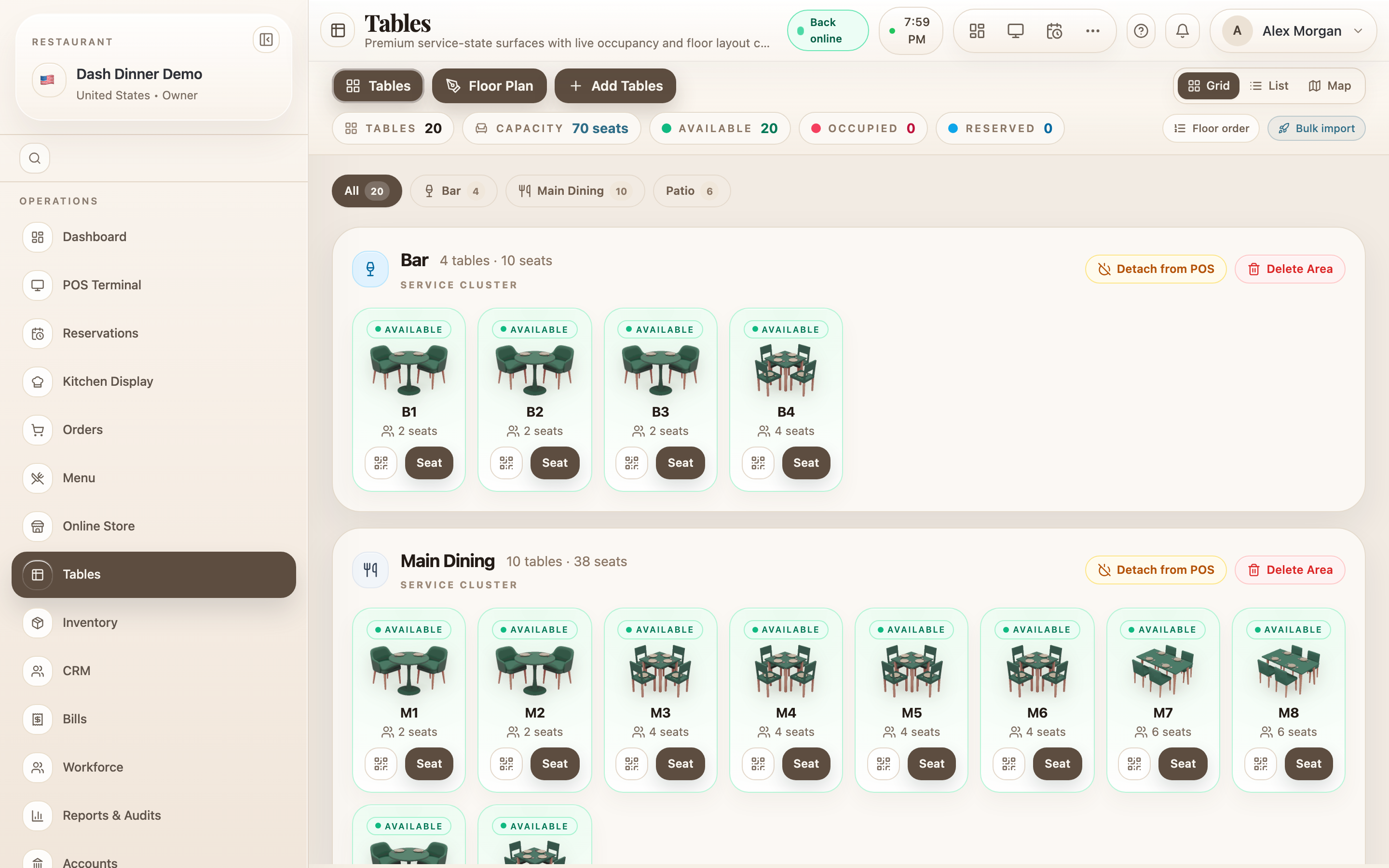
Views
- View toggle: Grid (cards), List (dense rows), and Map (a quiet live floor map, when you have one).
- Floor Plan button — opens the floor-plan designer to arrange tables visually.
Tables are grouped into areas (each an area panel), and area filter pills — All plus one per area — let you focus on a section.
Table status
Each table shows a status, colour-coded:
| Status | Meaning |
|---|---|
| Available (green) | Free to seat |
| Occupied (red) | Guests seated with an order |
| Reserved (blue) | Held for a booking (shows the guest and a countdown) |
| Cleaning (amber) | Being turned around |
| Offline (grey) | Taken out of service |
A card shows the table's name, its seat count, a status badge, and — when booked — a reservation ribbon with the guest's name and time.
Acting on a table
Each table's button changes with its status:
- Seat (available) — starts service. This opens a POS order for the table (it takes you to the POS), so seating and ordering are one step.
- Clear (occupied) — sends it to cleaning. It's blocked while there's an unbilled order — generate the bill in POS first.
- Ready (cleaning) — marks it available again.
- Arrived — appears when a booking is due, to mark the guest in.
- Bring Online — returns an offline table to service.
The KPI chips at the top — Tables, Capacity, Available, Occupied, Reserved — double as filters: tap one to show just those tables.
Worked example
Turn a table around. A party leaves table M4. On the Tables floor its card shows Occupied; once the bill is settled, choose Clear to send it to Cleaning. When it's wiped down, choose Ready and it's Available for the next guests.
Tips & things to watch
- ✅ Seat from here or the POS — either way, Seat opens the order, so nothing is missed.
- ✅ Use the status chips as filters to find every free (or occupied) table fast.
- ⚠️ Bill before you clear. A table can't be cleared while it has an unbilled order.