Attendance
What it's for
Attendance records when staff start and finish work as check-in / check-out events. Staff check themselves in and out; a manager approves the events, so the record is trustworthy.
Where to find it
In the Workforce hub, choose the Attendance tab.
Web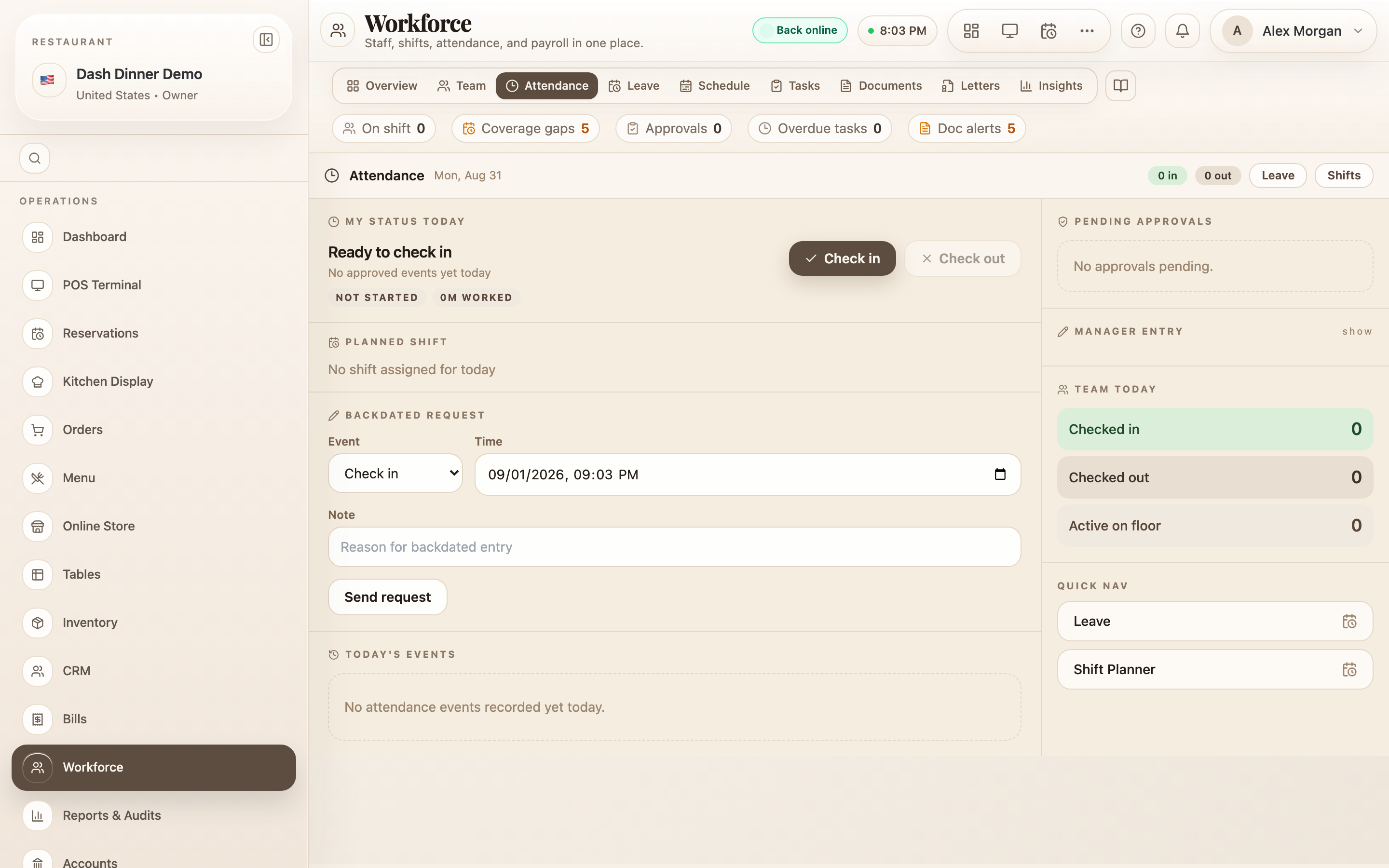
Check in and out (staff)
On the My status today panel:
- Choose Check in when you start your shift.
- Choose Check out when you finish.
The panel shows your last check-in and check-out. A new event starts as Pending until a manager approves it.
Approve events (manager)
The manager sees the team's events for the day:
- Approve or reject each with Approve / Reject. A rejected event shows the reason.
- Need to log for someone who forgot? Use the manager control to record a Check in or Check out on their behalf.
The Team today summary counts who's checked in, checked out, and waiting for approval.
Worked example
A cook forgets to check in. He starts the shift but taps nothing. At the pass the manager opens Attendance, uses the on-behalf control to record his Check in at the right time, and approves it — so his hours are correct without a fuss.
Tips & things to watch
- ✅ Approve events daily so attendance data stays clean and current.
- ✅ Managers can fix misses by logging a check-in/out on a staff member's behalf.
- ⚠️ Pending isn't counted yet. An event only firms up once it's approved, so don't leave a backlog of pending events unreviewed.